7 min read
Exportador: iPhone photos to your Mac, original and verified
A free Mac app that copies photos and videos from your iPhone over a cable straight to a folder, without the Photos app or iCloud: byte-for-byte originals, every file verified before it counts as done.
Link copied: in Instagram, paste it with the Link sticker.
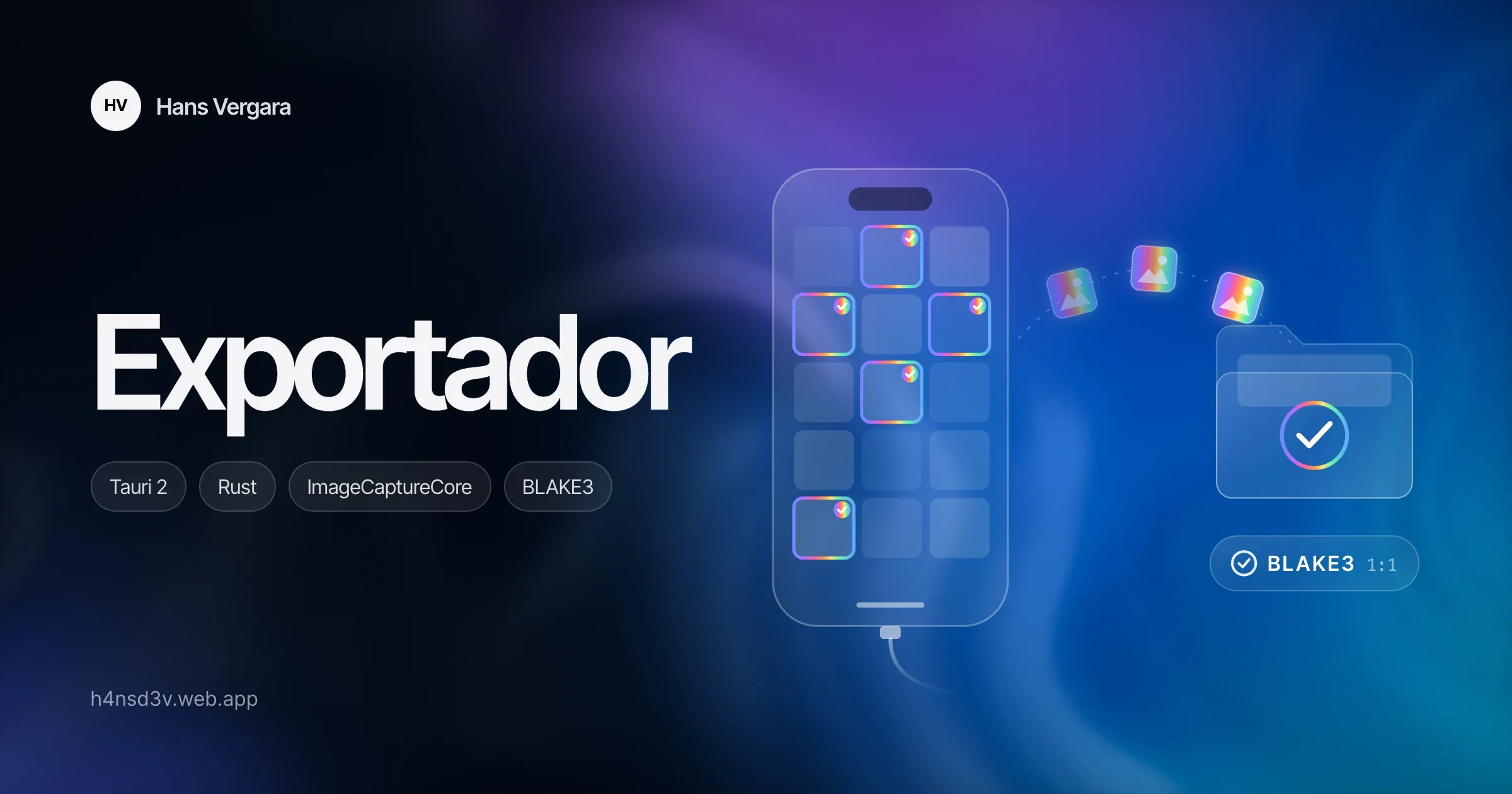
The problem
Backing up iPhone photos to a Mac should be the simplest thing in the world, yet it always took me more effort than it should. The path macOS offers is the Photos app: you open it, create a library and import, and everything ends up stored inside that library. If what you want is the files in a folder of your own, on an external drive or next to your other backups, you have to export them again from Photos. And more than once that export never even started: no error, no warning.
The other way out is iCloud, which almost always means paying for storage, depends on your connection and, with “Optimize Storage”, leaves only reduced versions of many photos on the phone. I didn’t want another library or another subscription. I wanted the iPhone’s original files in a folder, with the certainty that they arrived complete.
That’s how Exportador was born: a Mac desktop app that does one thing. It reads the iPhone connected by cable, shows its photos and videos, and copies the ones you choose, as byte-for-byte originals, to the folder you want.
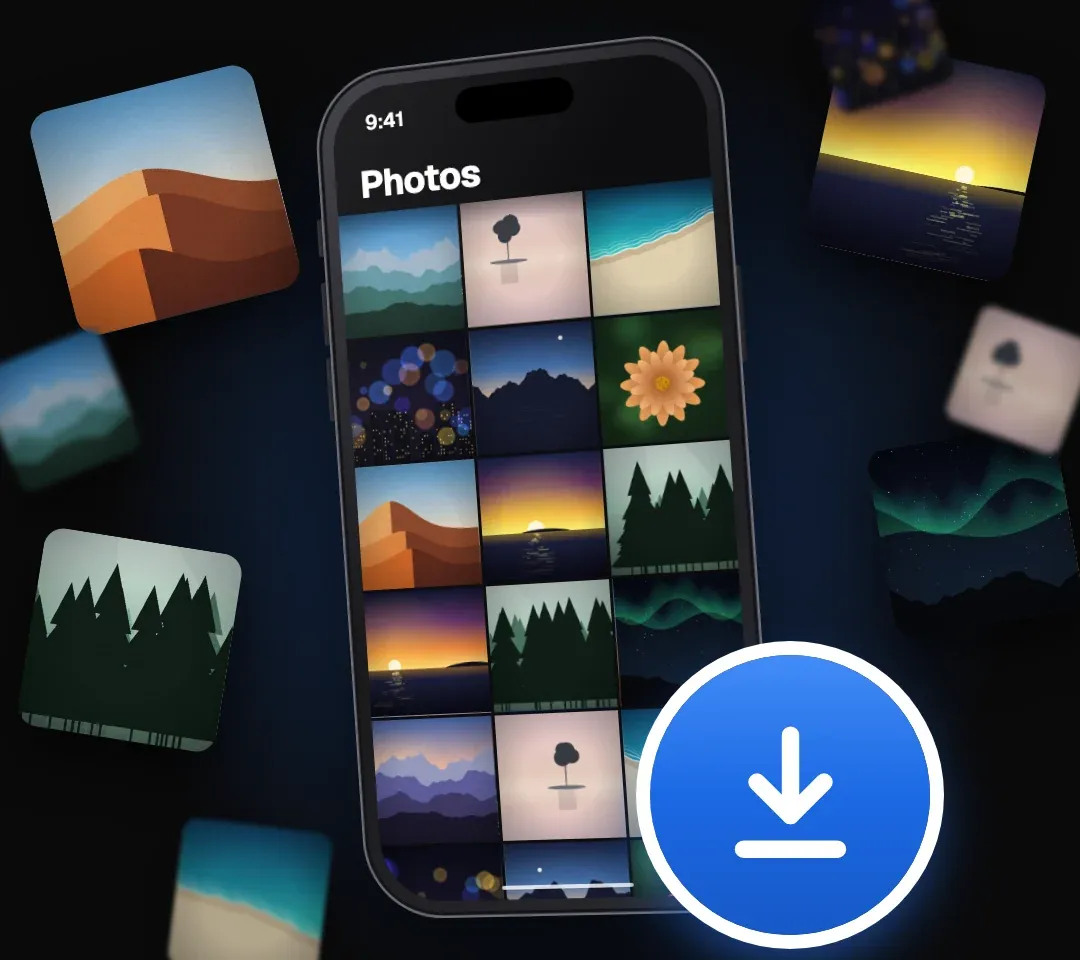
The cover of Exportador’s promo reel.
The principles
Before writing any code I wrote a PRD with measurable requirements. Six principles guided every decision:
- Originals, always. Nothing is converted or recompressed, and no metadata is touched.
- Cable only. No iCloud and no Mac photo library.
- Read-only. The app never deletes or changes anything on the iPhone.
- Three steps. Connect, choose and export; nothing else on screen.
- Minimal. A monochrome interface where the photos are the stars.
- Local and private. Photos never go over the network.
Connect, choose, export
Connect. Plug in the cable, unlock the iPhone and tap “Trust”. There are no buttons in between: the library shows up on its own and the first thumbnails arrive in 1.1 seconds. Meanwhile, a 3D iPhone shows on its own screen what’s left to do: plug in, unlock or trust.
Choose. Photos are grouped by day under sticky headers, just like in Photos. You pick with a click, ranges with ⇧, additions with ⌘, a whole day, everything with ⌘A, or a lasso by dragging the mouse. The space bar opens the preview, and videos play straight from the iPhone, HEVC included, without copying them first.
Export. You choose the folder once and Exportador remembers it. You can keep everything together or split it into year and month folders. While it copies, a progress ring fills up in the menu bar; if you’re in another app, a notification tells you when it’s done. Anything you’ve already exported is marked in the grid and never copied twice.
What comes out is exactly what you shot
The first surprise came from macOS itself: ImageCaptureCore, Apple’s framework for reading cameras and phones, hands out versions converted to JPEG and H.264 by default. Without explicitly asking for the original assets (mediaPresentation = OriginalAssets), the “originals, always” principle would have been broken.
With that solved, Exportador copies HEIC, DNG ProRAW, JPG, PNG, MOV and MP4 exactly as they are on the phone, with their EXIF data, GPS location and capture date intact. On top of that:
- Live Photos: the photo and its video come out with the same base name, for example
IMG_4821.HEICandIMG_4821.MOV. - Edited photos: always the original; if you want, also the edited version (
IMG_E…) and its.AAEadjustments file. - No duplicates: if an identical file is already in the folder, it’s skipped. If the name clashes but the content differs, it gets a
-1suffix, shared by the whole Live Photo. - Order in the Finder: the capture date becomes the file’s modification date, so the folder sorts itself.
No half-copied files
Integrity comes before speed. Every copy goes through six steps before it gets its final name:
- It’s written under a temporary name,
IMG_4821.HEIC.part. - It’s forced to disk with
fsync. - It’s read back from the disk, not from memory (
F_NOCACHE), to check what was really written. - Its BLAKE3 hash and size must match what the iPhone delivered.
- The capture date becomes its modification date.
- An atomic rename (
renamex_npwithRENAME_EXCL) gives it its final name without ever overwriting another file.
If the cable gets pulled, you quit the app or you cancel, the folder only holds complete, verified files; if it was the cable, the app offers to finish the rest when you reconnect. Before starting it compares the size of the selection with the free space, and warns you if a video over 4 GB won’t fit on a FAT32 drive.
The decisive test used a real iPhone: 30 out of 30 files, of every type, were byte-for-byte identical to the download from Image Capture, Apple’s own app. And to make sure the verification isn’t decorative, the tests include mutations: switch it off and the on-disk corruption test fails.
Read-only and private
Exportador can’t delete or change anything on the iPhone, and that’s not just a promise: an automated test checks that the code uses no function to delete, upload or write to the device.
Photos, videos, thumbnails and file names never go over the network. The window can’t load anything from outside (its security policy allows no external origins) and the only connection is the account: you sign in with your email and a code, no password, through Rust and only to the account service. That’s where usage totals that help improve the app are stored (how much gets exported, speed, errors). They can be turned off and never include photos, names, locations or folders.
Twenty thousand photos, no stutter
A real photo library has thousands of items, so the app was tested with a real iPhone holding 4,239 items (125 GB) and with a simulated one holding 20,000:
- Virtualized grid: only the ~54 visible cells exist on screen. Scrolling through 20,000 items stays at 60 fps.
- Thumbnails in batches based on what’s visible, with an on-disk cache per device. They’re drawn on a
<canvas>and released when they leave the view: with<img>, WebKit held on to the decoded images and memory went past 800 MB. - Parallel copying: over USB 2, the iPhone delivers about 20 MB/s with one read at a time and 28–31 MB/s with two, so the app keeps two reads in flight.
- Instant videos: the viewer requests the video in ranges, and the Rust core reads from the iPhone in 2 MiB blocks, with a cache and read-ahead. It reads the end of the file right away, because iPhone MOV files keep their index there. Playback starts in about 0.45 seconds.
The details
A single-purpose tool is judged by how it feels. Some details I took seriously:
- The window opens at the size of the largest iPhone’s screen and expands with the same animation as macOS’s native zoom.
- Dynamic Island–style notices and a top bar with progressive blur, like in Photos on iOS.
- Interface sounds synthesized on the fly with Web Audio, no audio files, respecting macOS’s sound effects setting.
- Everything works from the keyboard, with light and dark themes following the system.
- In English and Spanish, and the language switches instantly, no restart needed.
What I learned
- A PRD with measurable criteria changes everything. Every requirement had its acceptance criterion, and the result was a verification document, requirement by requirement, with the evidence: the measurement, the test or the real-world case. I built it with Claude Code as a copilot, and that discipline of specifying and verifying is what paid off the most.
- System APIs have dark corners. ImageCaptureCore sometimes doesn’t report that the iPhone was unlocked, and the app kept waiting while the phone sat unlocked in your hand. The fix was to reopen the session periodically while it still reports locked, but never while “Trust” is pending or during an export.
- Rare bugs need reproducing, not guessing. A crash during fast scrolling turned out to be a race inside wry, Tauri’s WebView layer, when thumbnails were answered off the main thread. Only after reproducing it with symbols could it be fixed, and it then survived seven minutes of stress testing.
Availability
Exportador is free and supported by donations. It runs on macOS 13.3 or later, on Apple Silicon or Intel. For now it’s Mac-only; a Windows version is still pending.
To download it, head to Exportador’s website: it always has the latest version, along with the installation instructions.
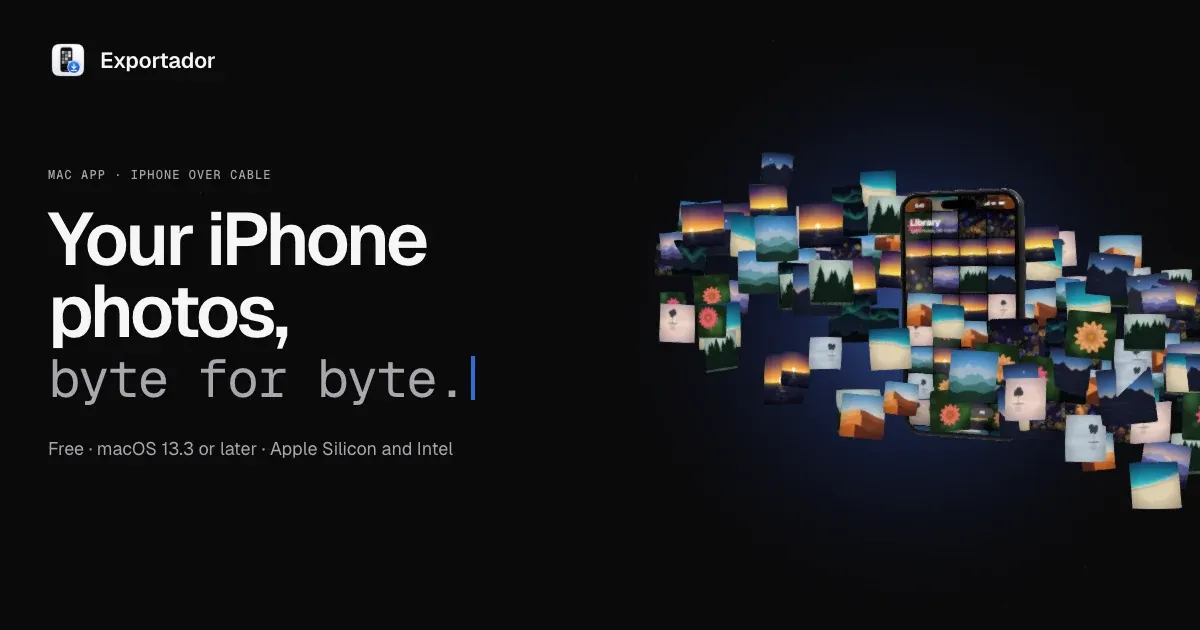
The landing page, built with Astro, with the 3D iPhone in three.js.
Stack
- App: Tauri 2, Rust (tokio, objc2 with ImageCaptureCore, BLAKE3, SQLite), React 19, TypeScript, Tailwind CSS 4, shadcn/ui, TanStack Virtual, three.js
- Account: Clerk, with requests made from Rust
- Landing page: Astro, three.js, Firebase Hosting
- Testing: 57 Rust tests, Vitest and a harness that drives the compiled app with a simulated 20,000-item iPhone
More information and download at exportador-beta.web.app.